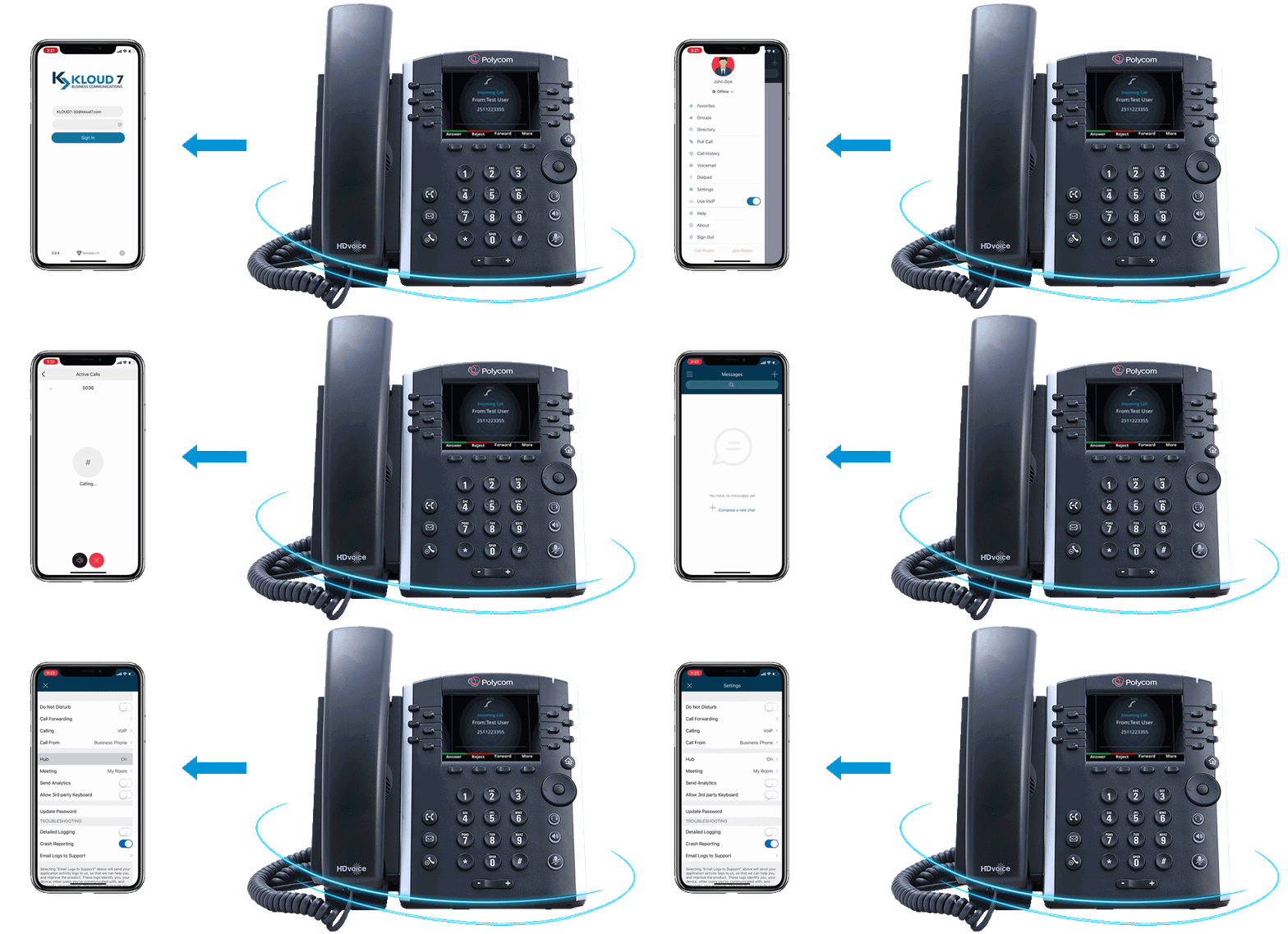
Call forwarding allows one phone number to relay calls to another number. Kloud 7 has
created three types of call forwarding so that you can make sure calls are sent to the
right place at the right time.
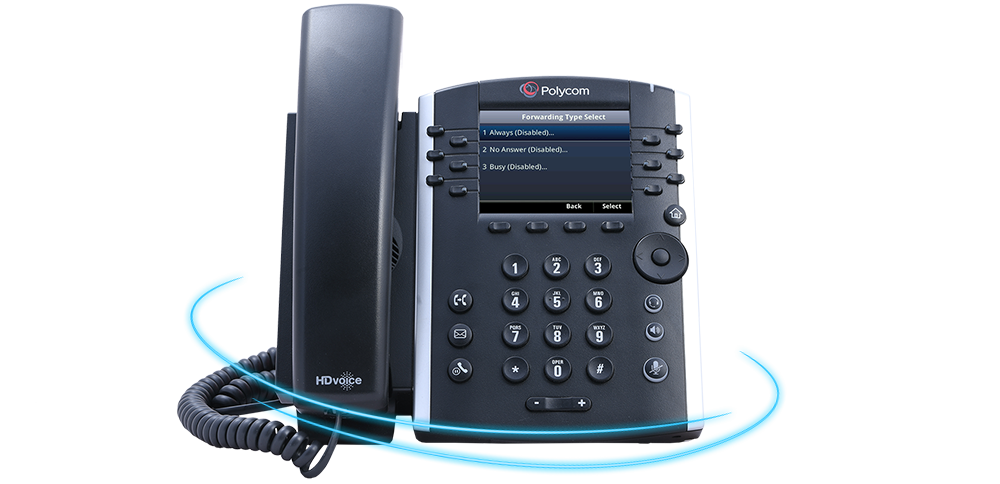
Call forwarding always, no answer and busy are the three types we
offer. In this section we will review each type, its purpose and how
to configure it
Before we begin, call forwarding only applies to the direct phone number
assigned to your phone. If your phone rings in a group with other phones, call
forwarding will not affect the groups number.
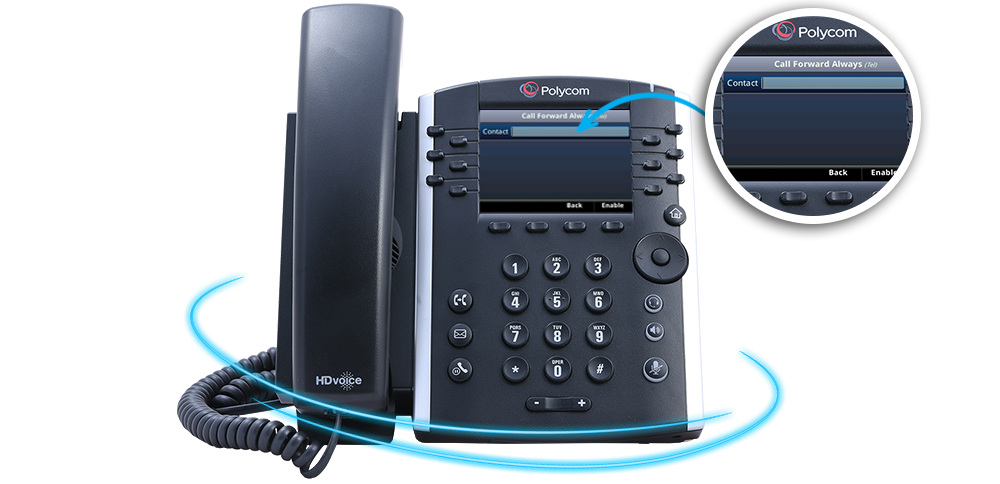
Call forwarding always is designed to relay all calls to another phone number When
active, all calls placed to the forwarded number bypass the forwarded phone
and ring to the forwarded phone.
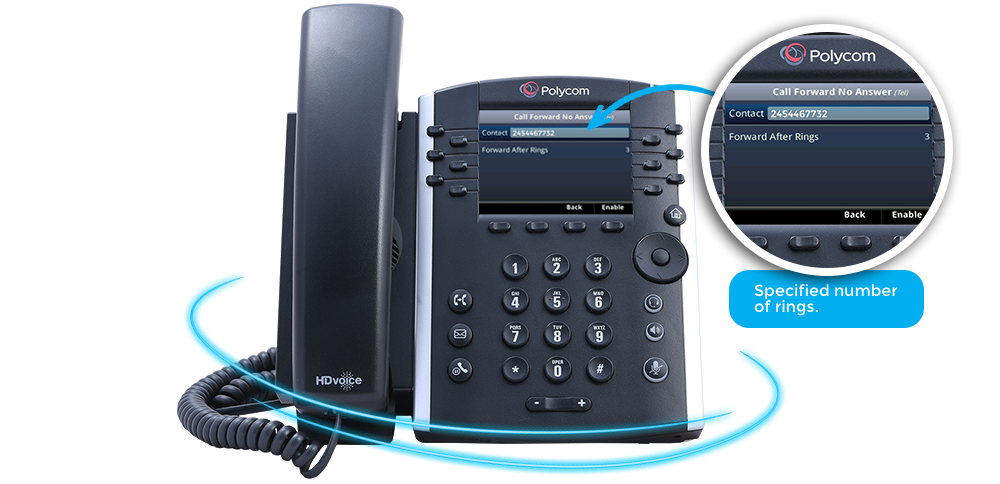
Call forwarding no answer will ring at the forwarded phone for a specified number of rings,
then forwards along to the specified phone rather than going to voicemail. This feature is
commonly used to prevent important calls from being missed by relaying calls.
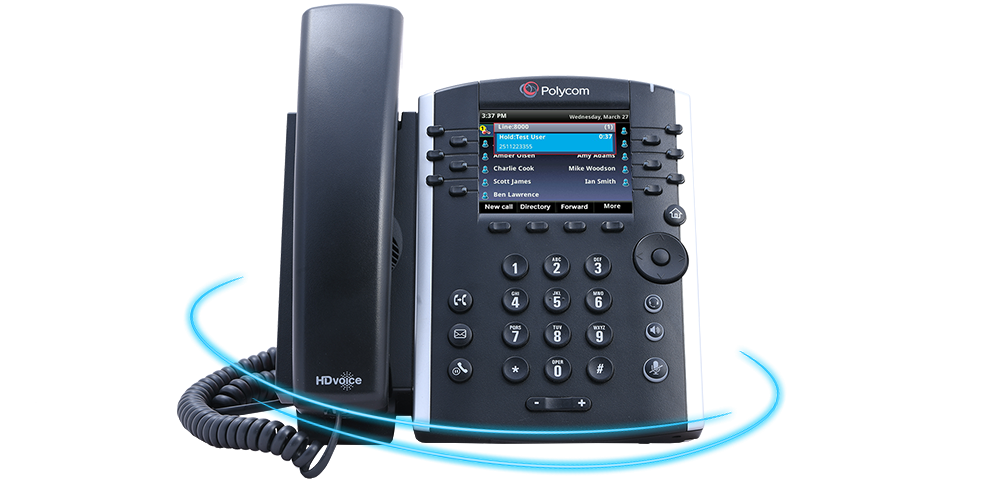
Call forwarding busy will selectively forward all calls while the line is busy to the
specified phone. This feature is useful in high volume scenarios when callers cannot
be placed on hold or sent to voicemail.
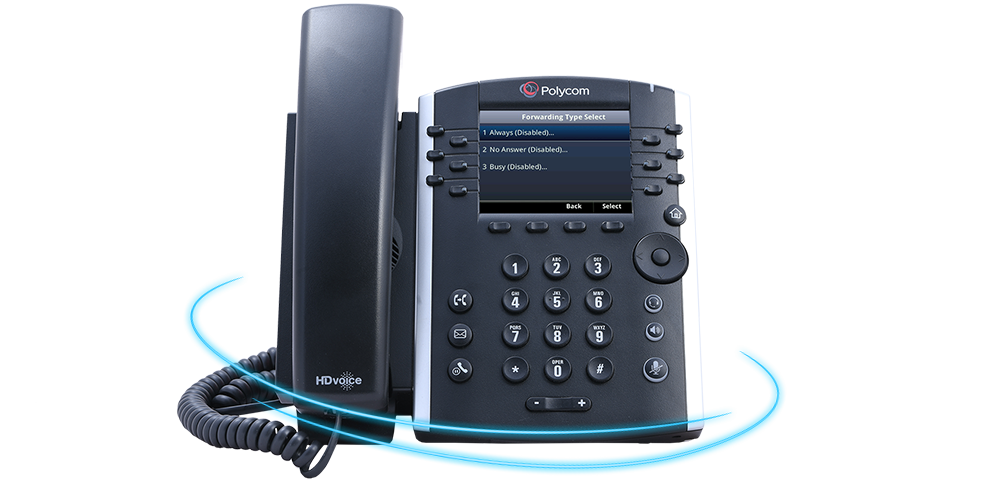
Now that we have outlined the differences in the three types of call forwarding, let's walk
through configuring each type. There are multiple ways to configure call forwards, but we
will cover the most simple method that is the easiest to remember.
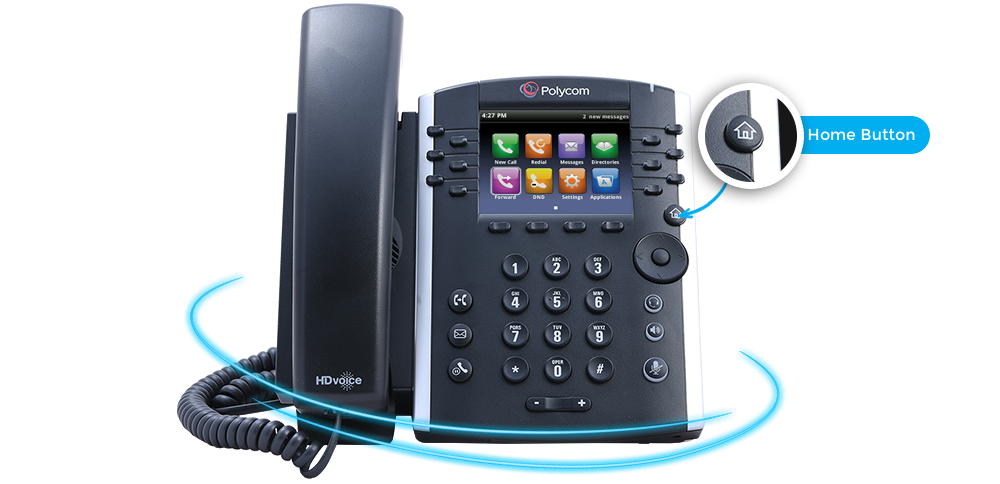
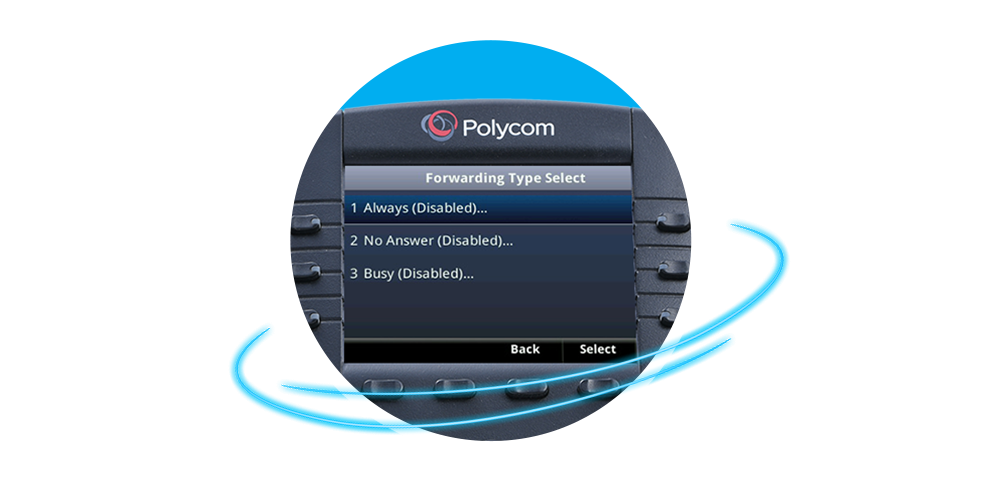
All three call forwarding options are configured by first pressing
the Home Button on your phone.
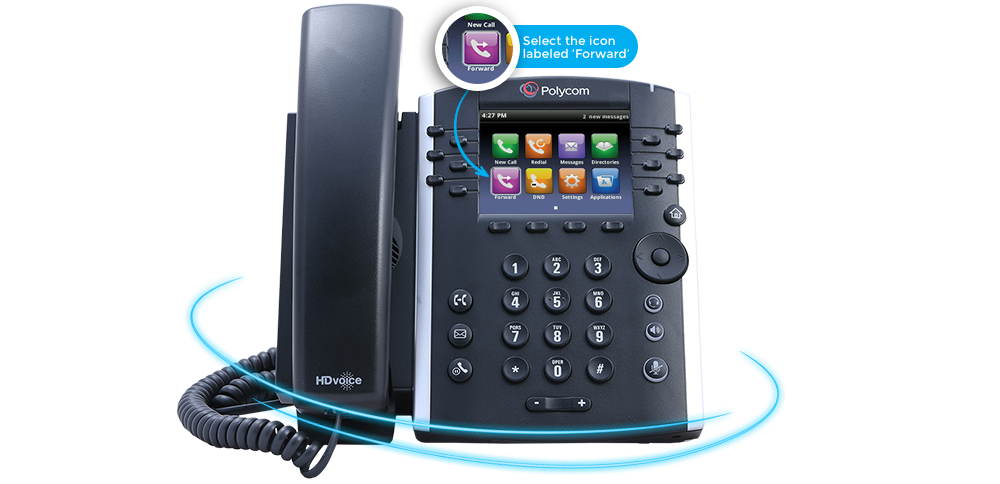
Next, you will use the directional pad to select the on screen menu icon labeled
“Forward” . This will open the forwarding menu where each of the three types can be
enabled or disabled.
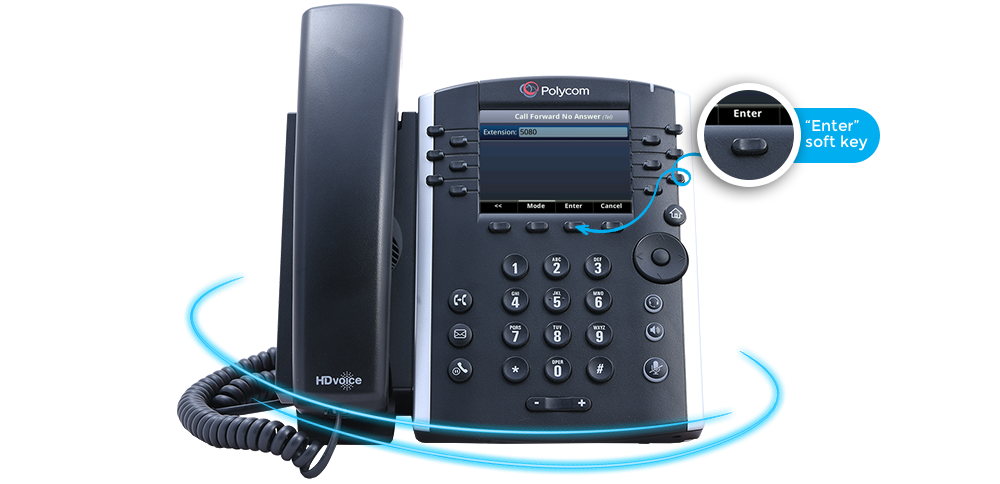
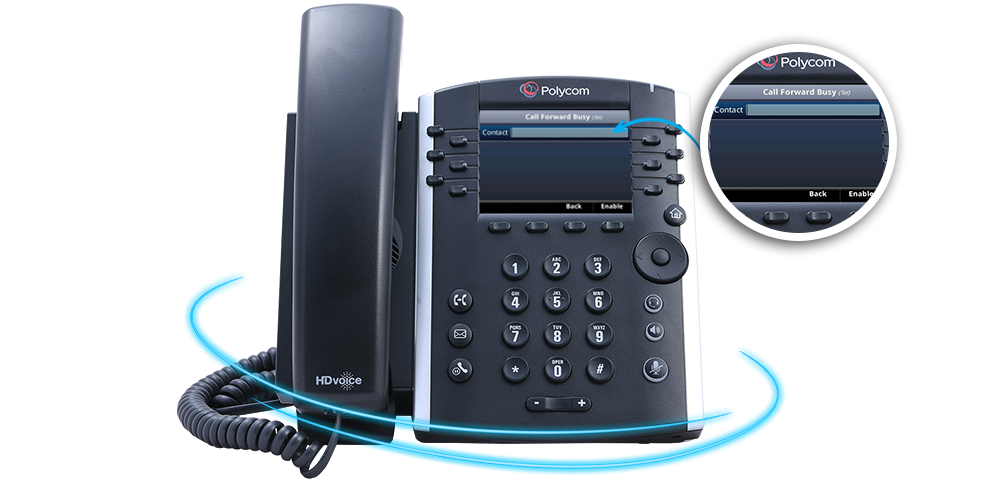
Use the directional pad to hover over and select the type of forwarding you
seek to enable. Once selected, enter the extension, 7 or 10 digit number you
wish to forward calls to, then select the “Enter” soft key"
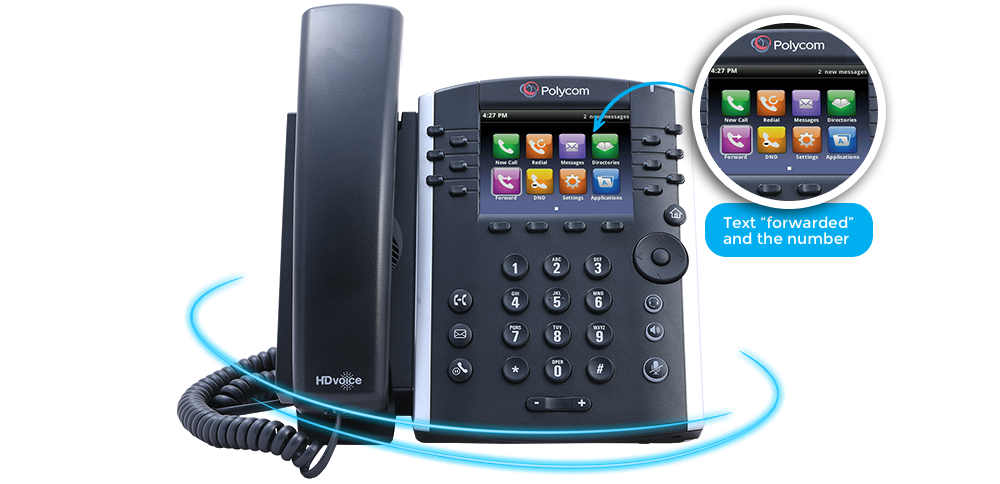
The specified forwarding type is now enabled. You can confirm this by noticing
that the icon next to your extension has changed and by the status in the upper
right hand corner which shows the text “forwarded” and the number.