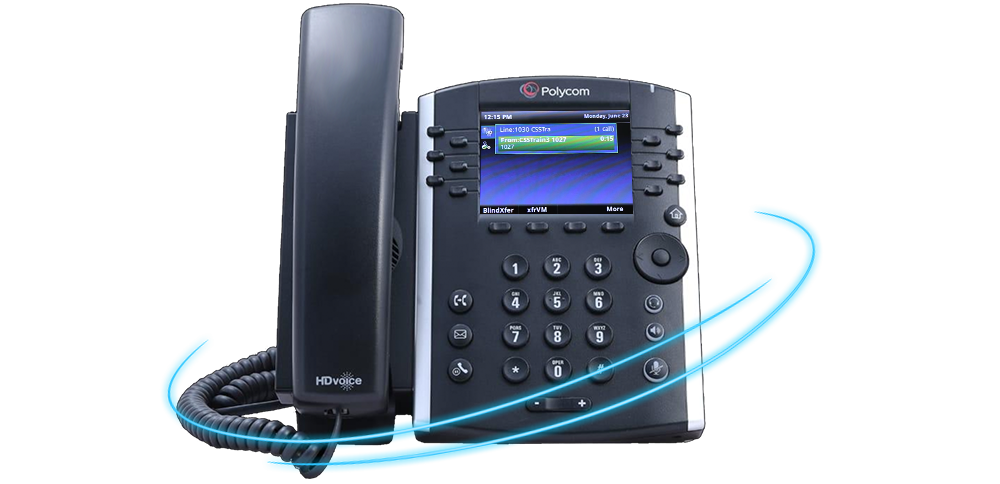
Managing Voicemail Messages
Now that your voicemail is set up, let's review the steps taken to access your voicemail
management
portal. Now we can show you how to listen, delete, save and forward voicemail
messages
once someone has
left you one.
Now that your voicemail is setup, lets review the steps taken to access your
voicemail
management
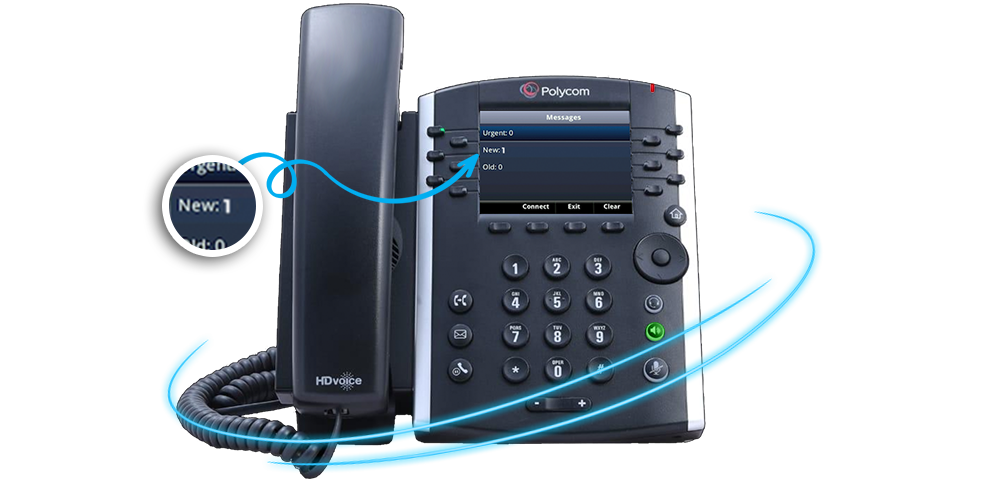
portal. To follow along with these steps you need to have at least one
voicemail in your mailbox. You
can
call your Kloud 7 phone from your personal cell
phone or any other phone to leave a voicemail
message.
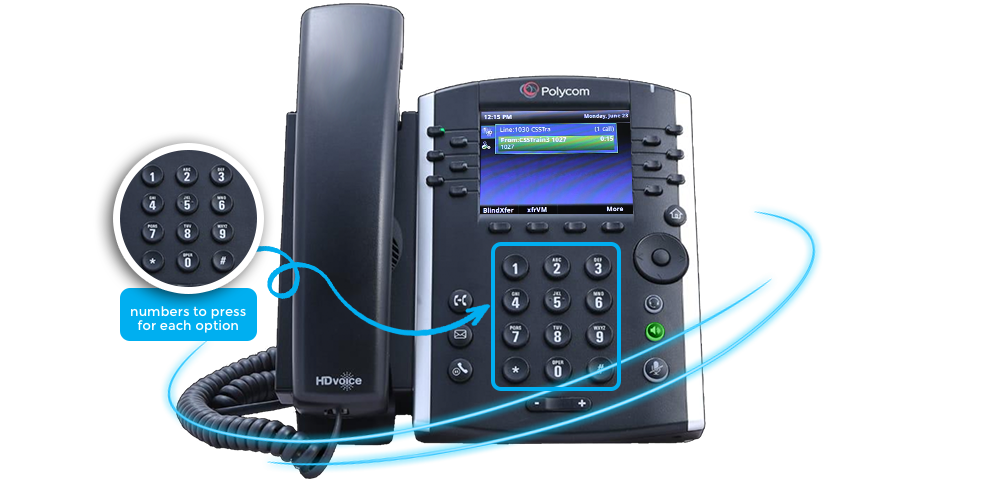
The voicemail portal is completely guided by a voice prompt that gives
you options and instructs you on which number to press for each
option.
This makes managing
voicemail very easy.
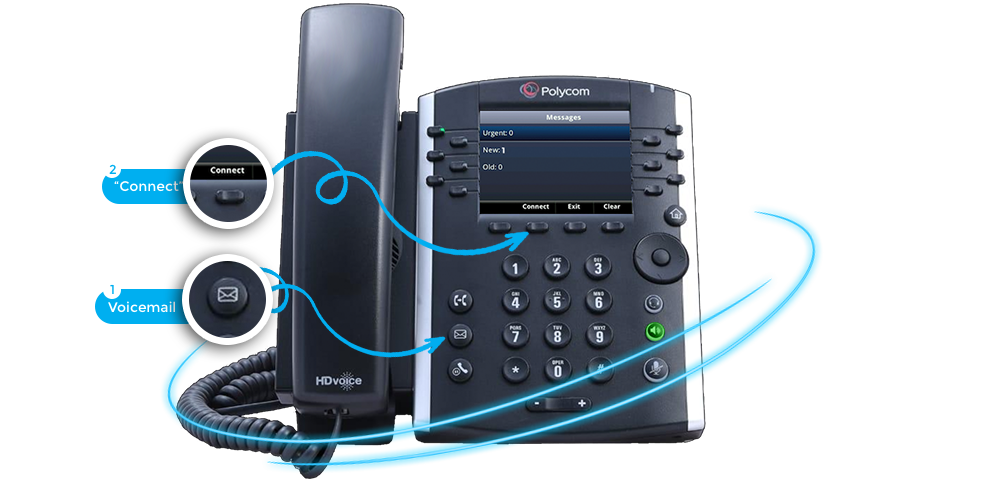
Let's get started by connecting to the voicemail portal.
From your Kloud 7 phone press the voicemail key and
select the “Connect”
soft key.
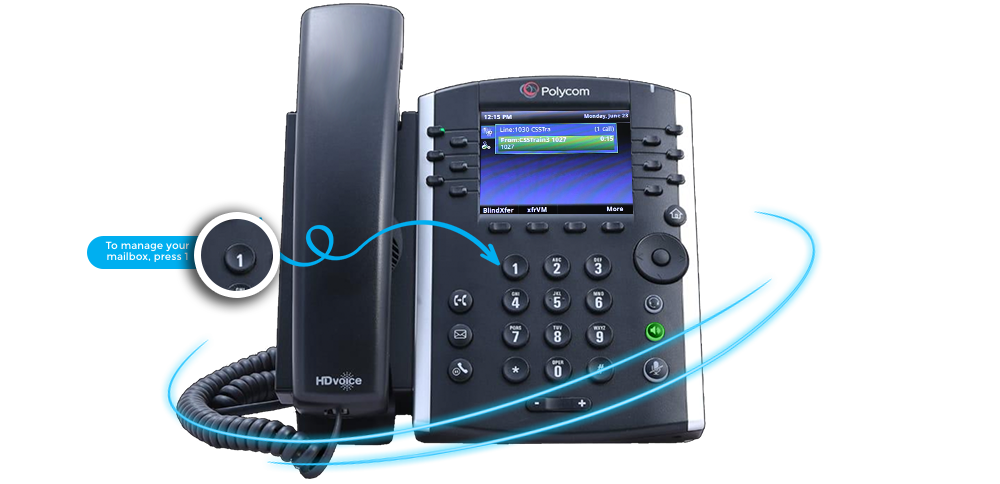
You will hear a welcome message. To manage
your
mailbox, press 1
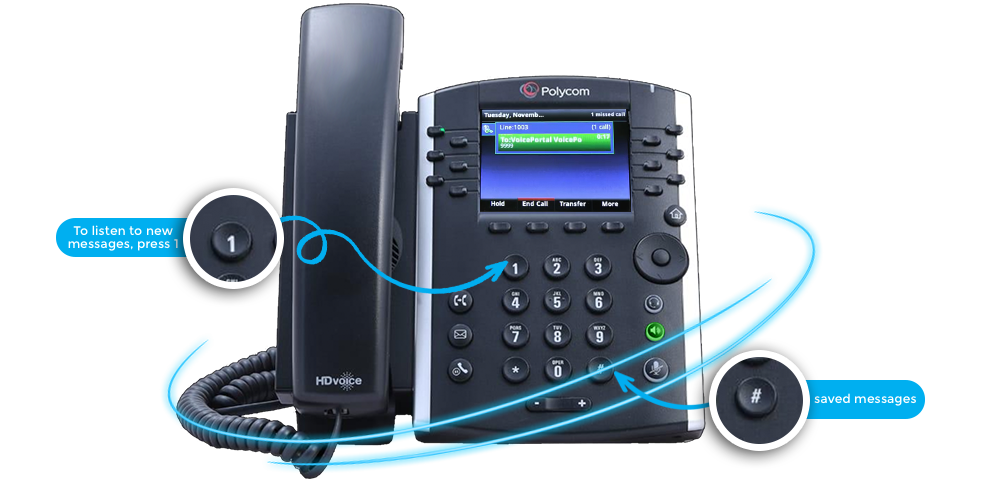
The voice prompt will inform you how many new
and
saved
messages are in your mailbox. To listen
to new messages, press 1.
You will then hear the voicemail message. Once
complete
the
prompt will provide a list of several options for your to
manage this voicemail message.
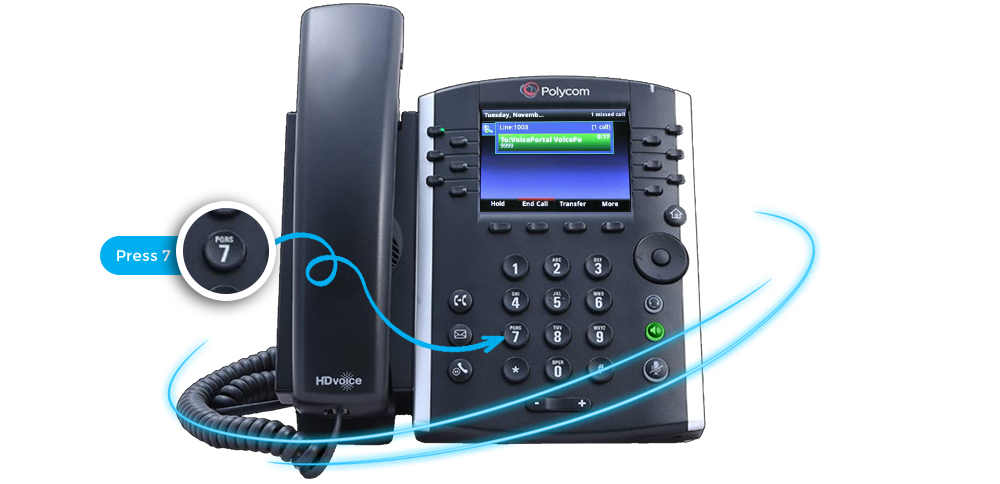
To delete the voicemail message, press 7
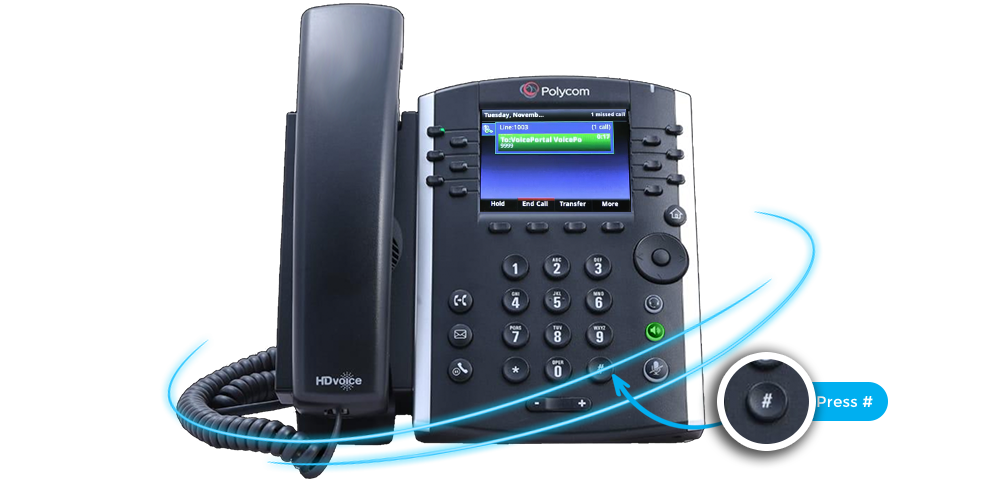
To save the voicemail message, press #
As you will hear from the prompt, many other useful options
exist, but these three
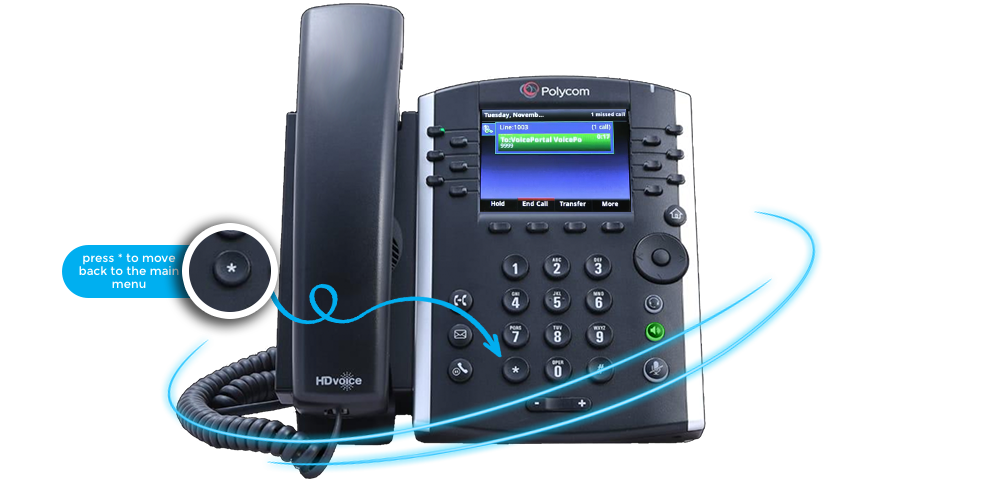
are the most common. You can press * to move back to the main menu or
hang up
the
call to exit the voicemail portal.