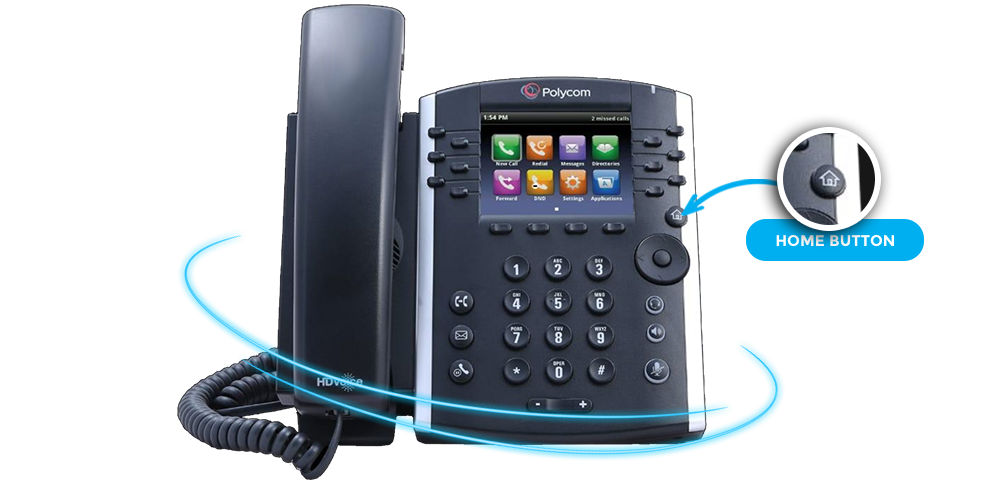
Home Button
The button with the house icon is the home button. It is used to access the phones main
menu.
From the
main menu many features and settings options are accessible. Pressing the home
button twice takes you
back to the last screen
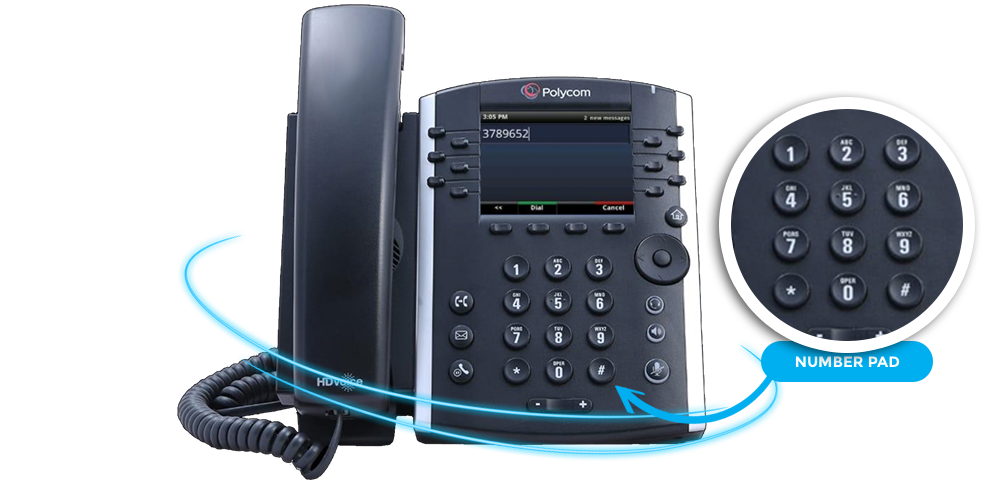
Number Pad
The number pad contains digits 0-9, * and #. The number pad is used most
commonly when dialing
numbers,
but can also be used for other tasks like naming speed dials.
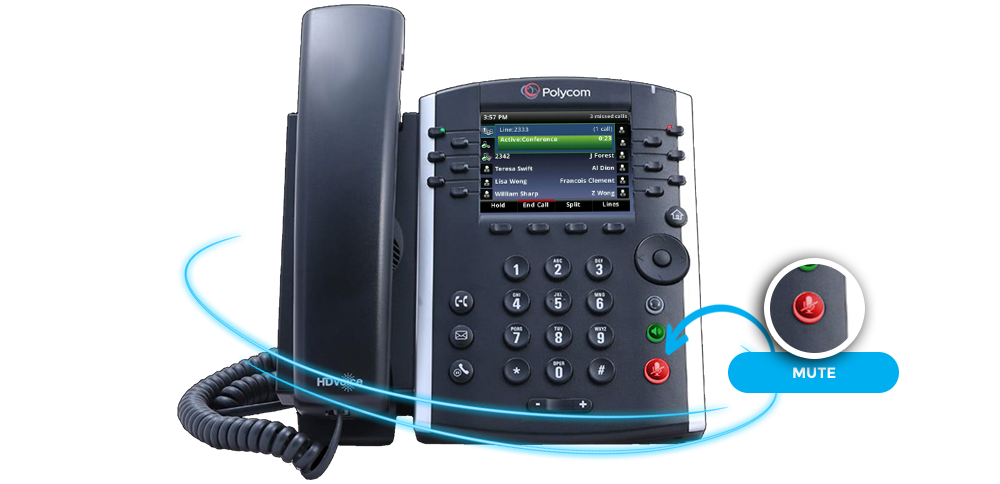
Mute
The mute button is identified by a
microphone with a line drawn through it. When pressed it
will light up red to indicate the your microphone is disabled so others cannot hear you. Note:
The mute button will only function when a call is active.
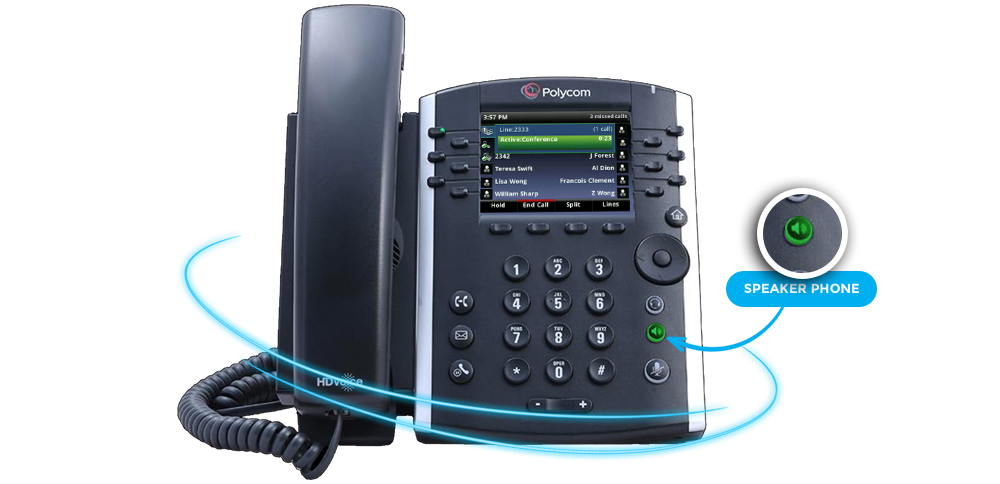
Speaker Phone
The speaker phone button is marked with a speaker
icon and will
light up green when
activated. During an active call, press once to activate, then hang
up the handset.
Follow these steps in reverse to move the call back to the handset.
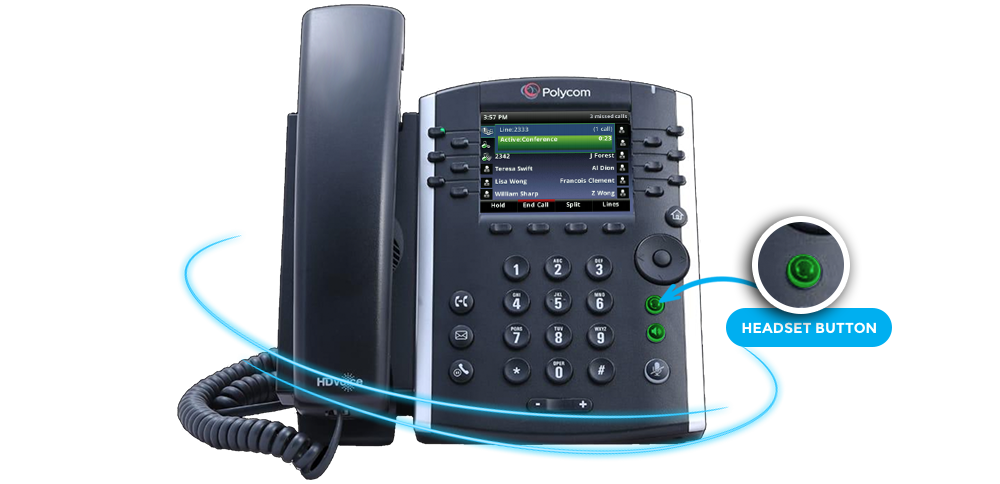
Headset Button
If you have connected a headset to the headset
port behind the
phone, press the button
with the over-ear headset icon to use the headset rather than
the handset to
place and
receive calls. A blue light will appear when it is active.
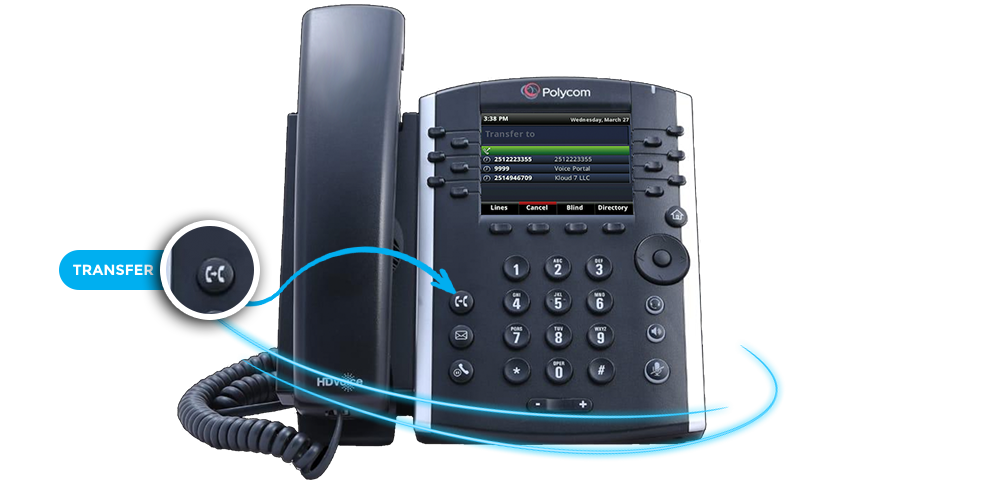
Transfer
The transfer button has an icon with two phone
handsets with an arrow
between them. This button is used to transfer a call to another phone.
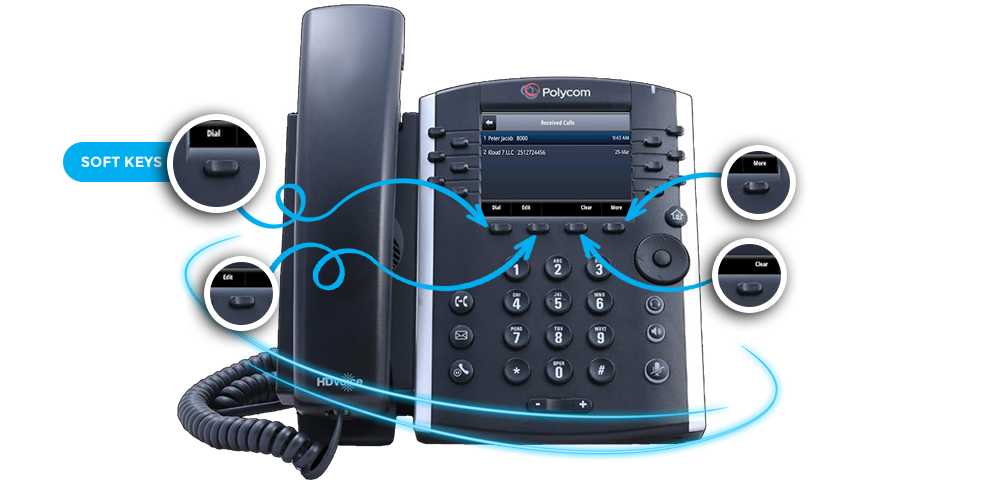
Soft Keys
All non-touch screen phones have 4 unlabeled physical
keys below
the screen. These
keys when pressed, will control the command printed on the screen above them.
The
menu
items above these keys change based on the current activity.